Create a New Environment
This page explains how to create an environment.
Open the Form
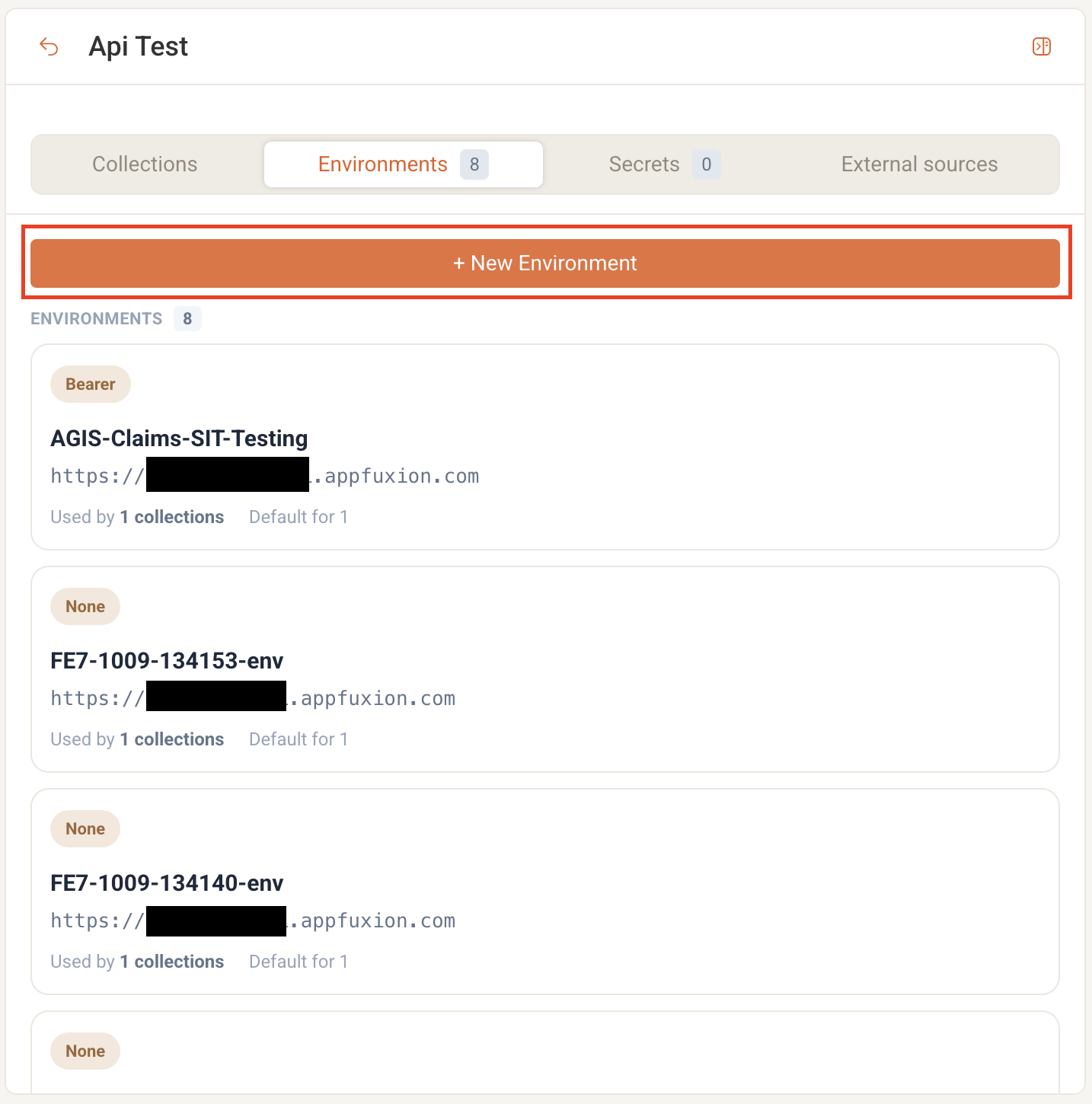
- Open API Test and select the Environments tab.
- Select + New Environment.
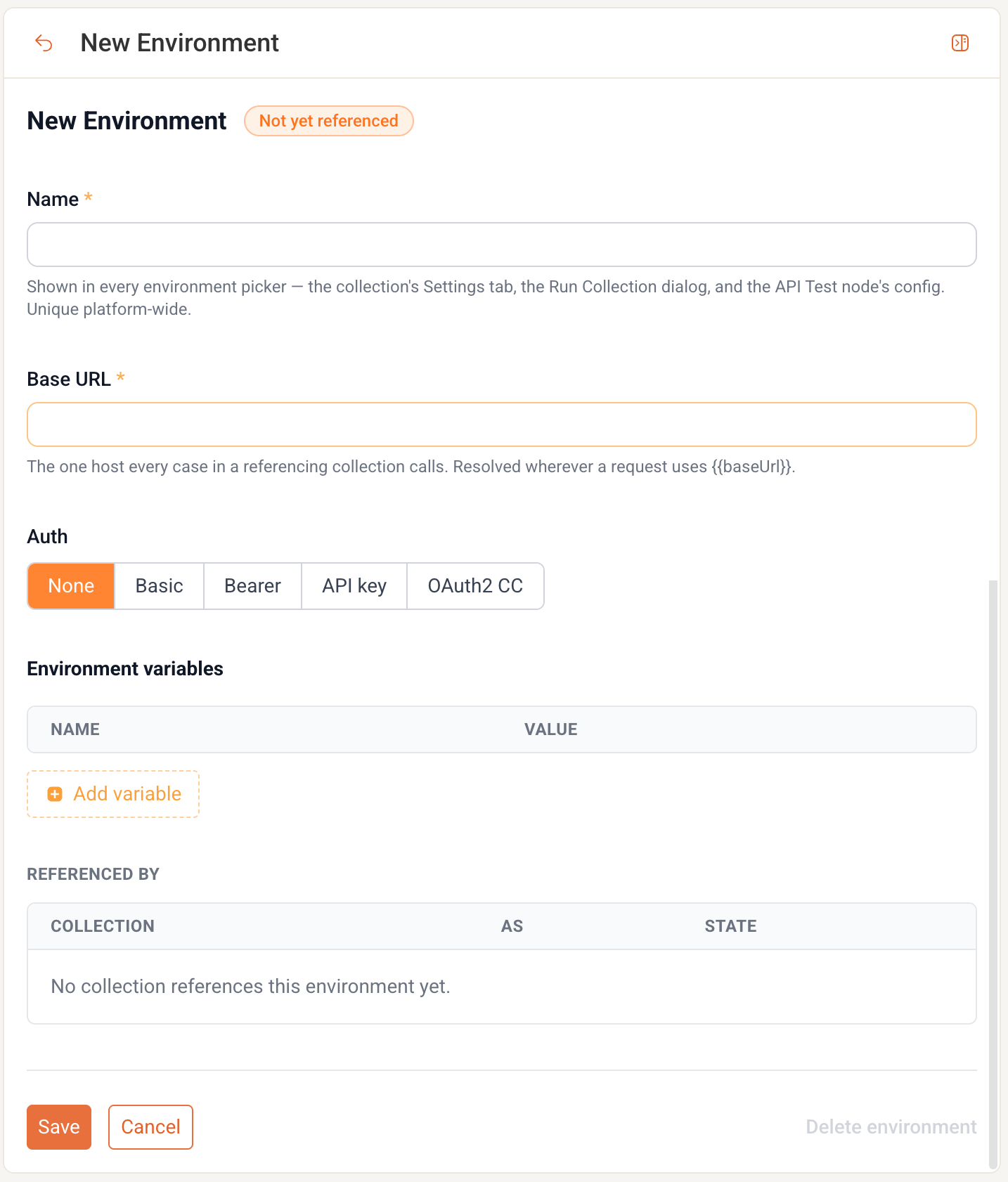
The New Environment form opens. The badge next to the title shows Not yet referenced, because no collection uses the environment yet.
Enter the Name and Base URL
Name
Enter the name of the environment. This field is required. The name is shown in every environment picker, and it must be unique across the platform.
Base URL
Enter the base URL of the environment. This field is required. It is the one host that every case in a collection calls. It is resolved wherever a request uses {{baseUrl}}.
Choose the Auth
Select the authentication of the environment. None is selected by default. The fields below the buttons change with your choice.
Where a field asks for a secret, select a secret reference from the drop-down list.
None
No extra fields are shown.
Basic
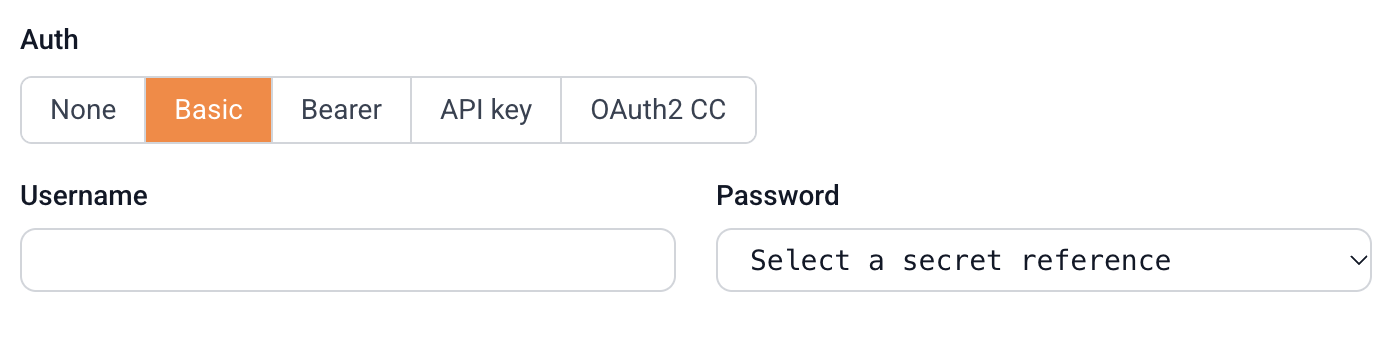
- Username — the user name
- Password — a secret reference for the password
Bearer
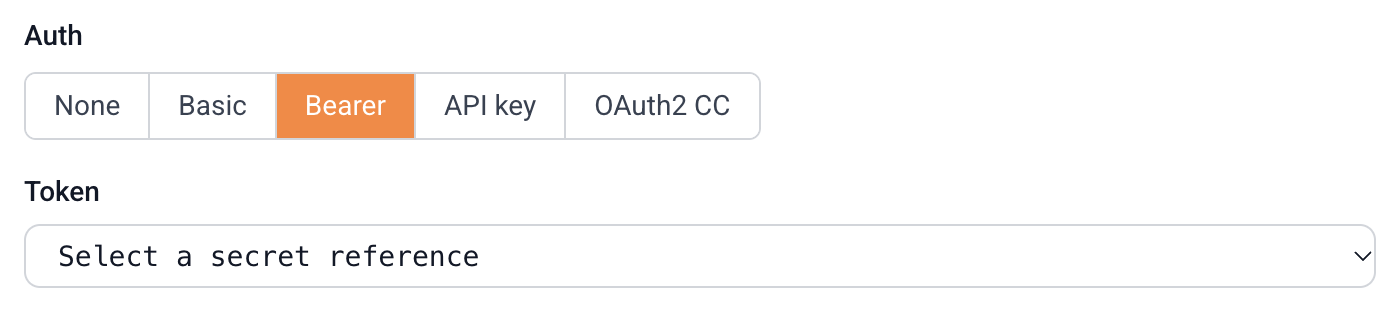
- Token — a secret reference for the token
API key
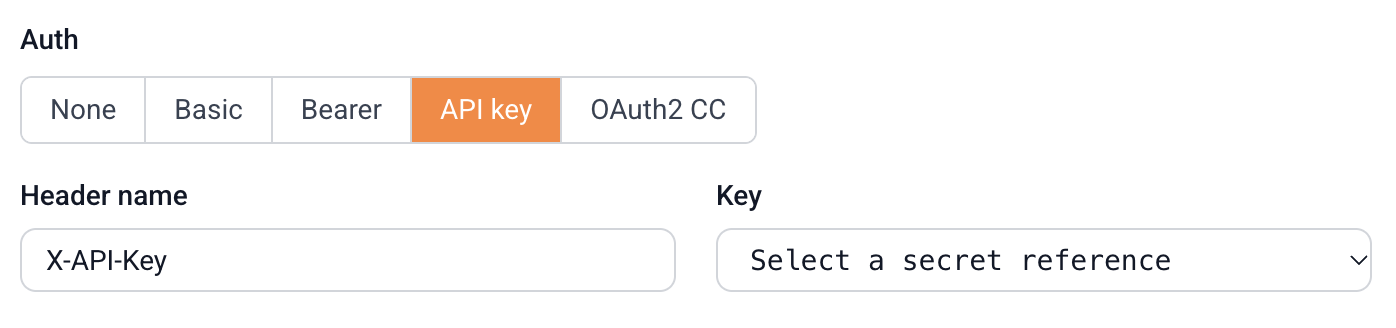
- Header name — the name of the header, such as
X-API-Key - Key — a secret reference for the key
OAuth2 CC
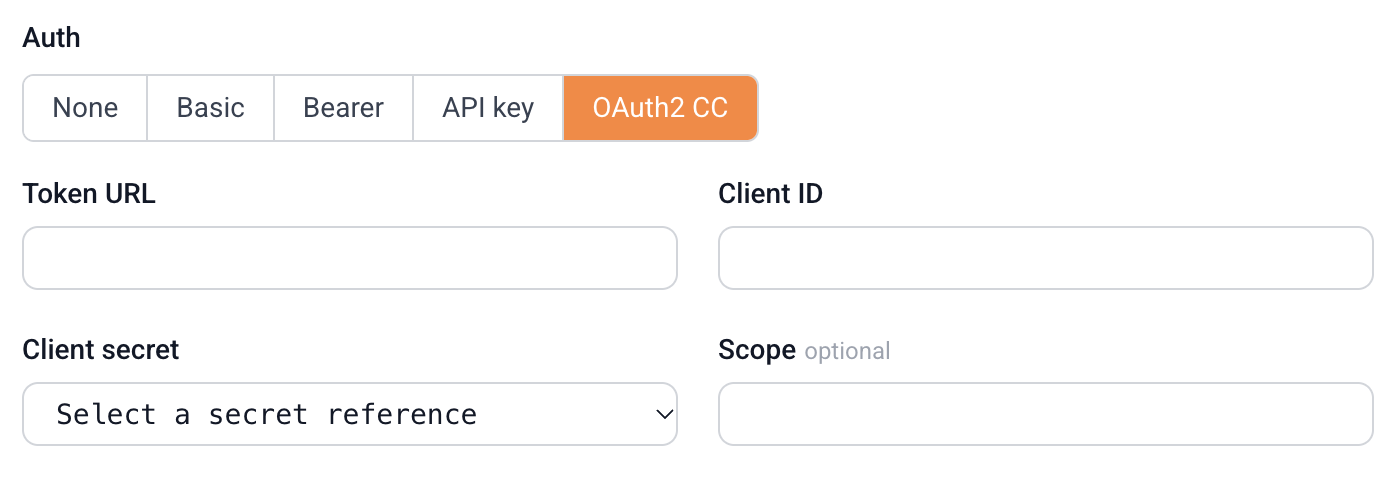
- Token URL — the token URL
- Client ID — the client ID
- Client secret — a secret reference for the client secret
- Scope — the scope. This field is optional
Add Environment Variables
The Environment variables table has a Name column and a Value column.
- Select Add variable.
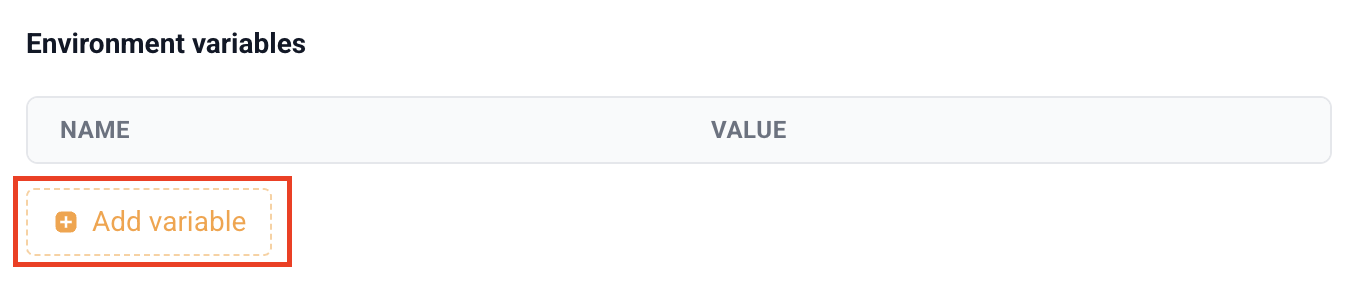
- Enter the name and the value in the new row.
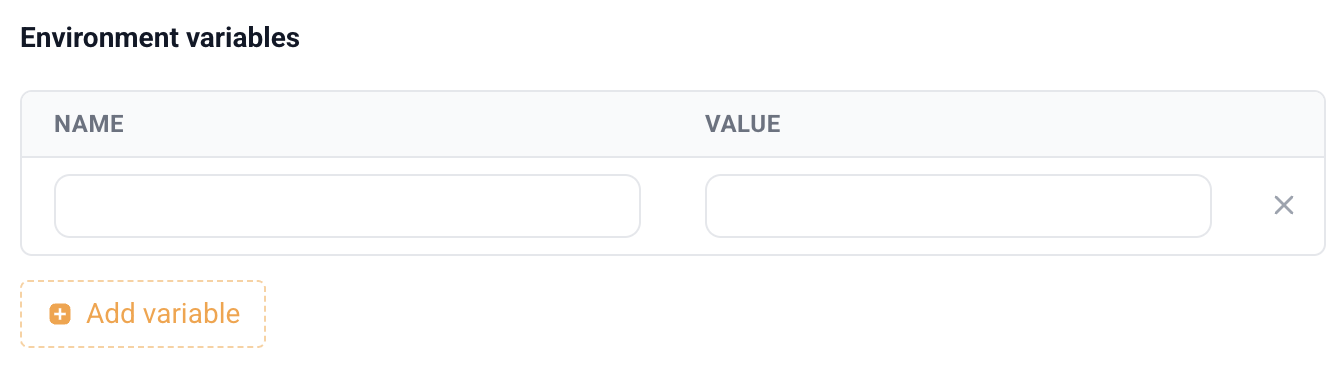
To remove a variable, select the × at the end of its row.
Save the Environment
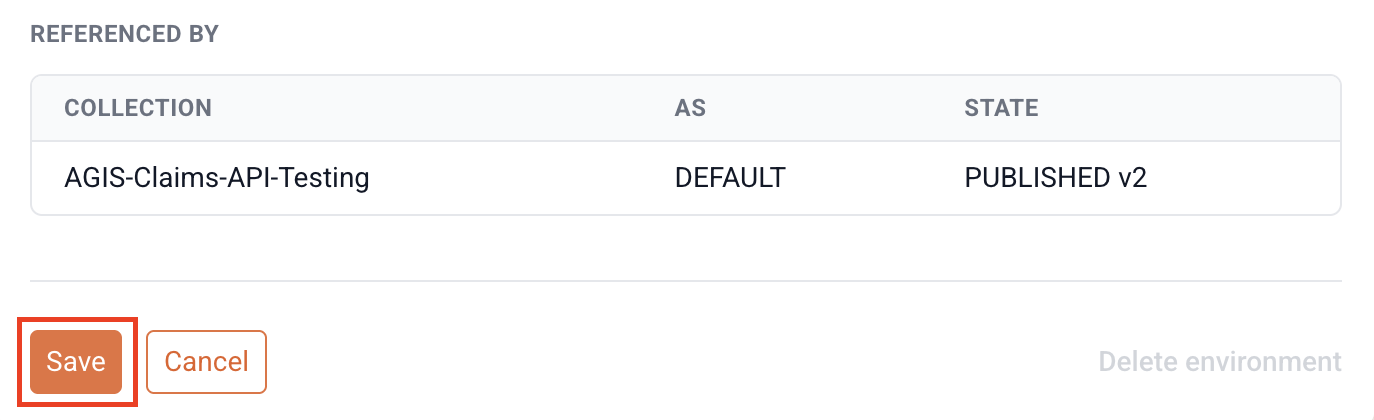
Select Save to save the environment, or Cancel to leave the form without saving. Delete environment is disabled while you create a new environment.